Gymrek Lab Meetings
General meeting info
The lab meeting schedule is emailed out at the beginning of each quarter to our Google Group (see onboarding to request access).
We cater food for each lab meeting. Each week, someone in the lab will be assigned to present. The following week, they will usually be assigned to order food for the lab. Refer to these instructions for ordering food if you’ve been assigned.
Presenting
If you are presenting in Franklin Antonio Hall, follow these steps to set up the projector for your presentation. We recommend using Airtime but you can also connect without it.
Connecting with Airtame
- We especially recommend connecting via Airtame if you have a Mac. If you have a Windows laptop, you will need to download the Airtame app first.
You may also choose to connect without Airtame but beware that this can be finicky sometimes.
- If you have a Windows laptop, you must connect to the audio via the cables provided in the front of the room. You can skip this step if you have a Mac.
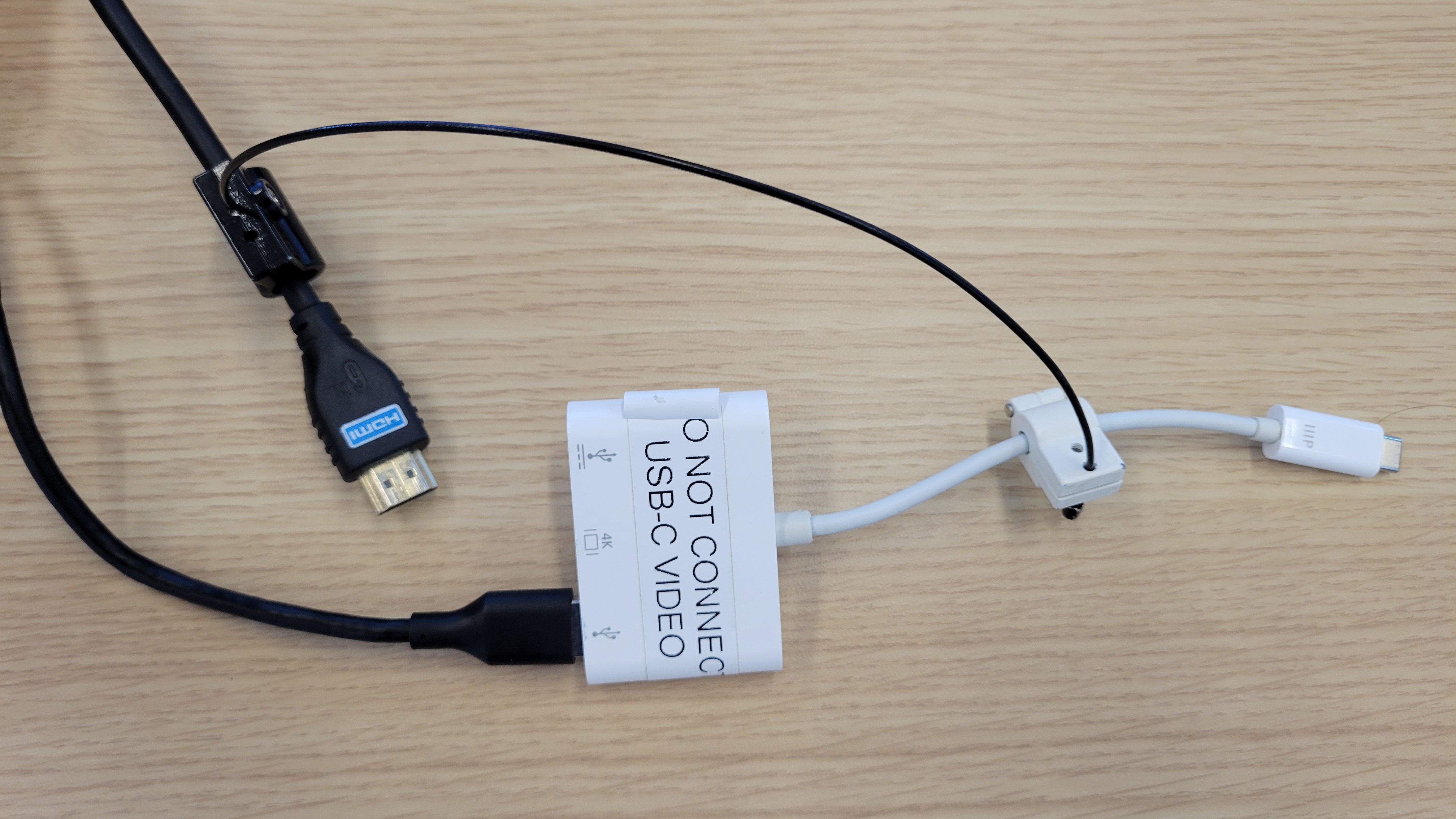
You should connect only the USB cable and not the HDMI cable to your laptop. The USB cable lets you connect to the room’s speaker and microphone. If needed, you can use the white USB Type-C adapter to connect to the cable like this.
Connect your laptop to the room’s Wi-Fi.
If you’re using a Mac, connect to the room via “Screen Mirroring”. Refer to the “Mirror your Mac on a TV” section of these instructions. Otherwise, if you’re using a Windows laptop, open the Airtame app and select the appropriate room.
Since all lab meetings are hybrid, you should run zoom during the meeting. Log into the lab’s zoom meeting now. You can find the Zoom link on the lab meeting schedule.
Display the Zoom window via the projector. Screenshare your slides from Zoom.
If you’re using Windows, connect your Zoom video to the room’s camera. In FAH 4002, you can select the second of the “USB Capture SDI+” options.
You might see a slighly different set of options. In that case, you can try all of them and see which ones work.
If you’re using Windows, connect your Zoom microphone to the room’s microphone. In FAH 4002, you can select “Line In (USB Capture SDI+ Line In)” from among the list of options. You might want to double-check that someone on zoom can hear someone else on the opposite side of the room.
You might see a slighly different set of options. In that case, you can try all of them and see which ones work. The audio should appear as a flickering green signal.
If you’re using Windows, connect your Zoom audio to the room’s speakers. In FAH 4002, you can select the “Crestron” option from among the list of options. Have someone else log into the Zoom and say something through their device.
Don’t forget to switch to full screen mode on Zoom. Under “More” in the top bar, click “Hide / Show Floating Meeting Control”.
Knock it out of the park!
Connecting without Airtame
- Connect to the projector via the cables provided in the front of the room - rather than connecting wirelessly.
You should connect both the HDMI cable and the USB cable to your laptop. The USB cable lets you connect to the room’s speaker and microphone. If needed, you can use the white USB Type-C adapter to connect to both cables like this.
Configure your laptop for presentation mode. See these instructions for Macs or simply click Windows Key + P together on Windows.
Since all lab meetings are hybrid, you should run zoom during the meeting. Log into the lab’s zoom meeting now. You can find the Zoom link on the lab meeting schedule.
Display the Zoom window via the projector. Screenshare your slides from Zoom.
Connect your Zoom video to the room’s camera. In FAH 4002, you can select the second of the “USB Capture SDI+” options.
You might see a slighly different set of options. In that case, you can try all of them and see which ones work.
Connect your Zoom microphone to the room’s microphone. In FAH 4002, you can select “Line In (USB Capture SDI+ Line In)” from among the list of options. You might want to double-check that someone on zoom can hear someone else on the opposite side of the room.
You might see a slighly different set of options. In that case, you can try all of them and see which ones work. The audio should appear as a flickering green signal.
Connect your Zoom audio to the room’s speakers. In FAH 4002, you can select the “Crestron” option from among the list of options. Have someone else log into the Zoom and say something through their device.
Don’t forget to switch to full screen mode on Zoom. Under “More” in the top bar, click “Hide / Show Floating Meeting Control”.
Knock it out of the park!